How to Convert Amount to Words in Excel (VBA)
This Page Covers
ToggleWhen working with financial data in Microsoft Excel, there are many situations where you need to write numeric values in words. This is commonly required while preparing cheques, invoices, debit notes, credit notes, payment vouchers, and other accounting or legal documents.
Manually typing amounts in words can be time-consuming and increases the risk of errors, especially when dealing with large numbers or decimals. Using online tools may help, but switching between Excel and external websites slows down your workflow.
Unfortunately, Microsoft Excel does not provide a built-in function to convert numbers into words. However, the good news is that Excel offers a powerful feature called VBA
What is VBA?
VBA stands for Visual Basic for Applications. It is a programming language built into Microsoft Excel that allows users to automate tasks, create custom formulas, and extend Excel’s functionality beyond its default features.
By using VBA, we can write a custom user-defined function (UDF) that converts numeric values into words. Once created, this function can be reused in any Excel file.
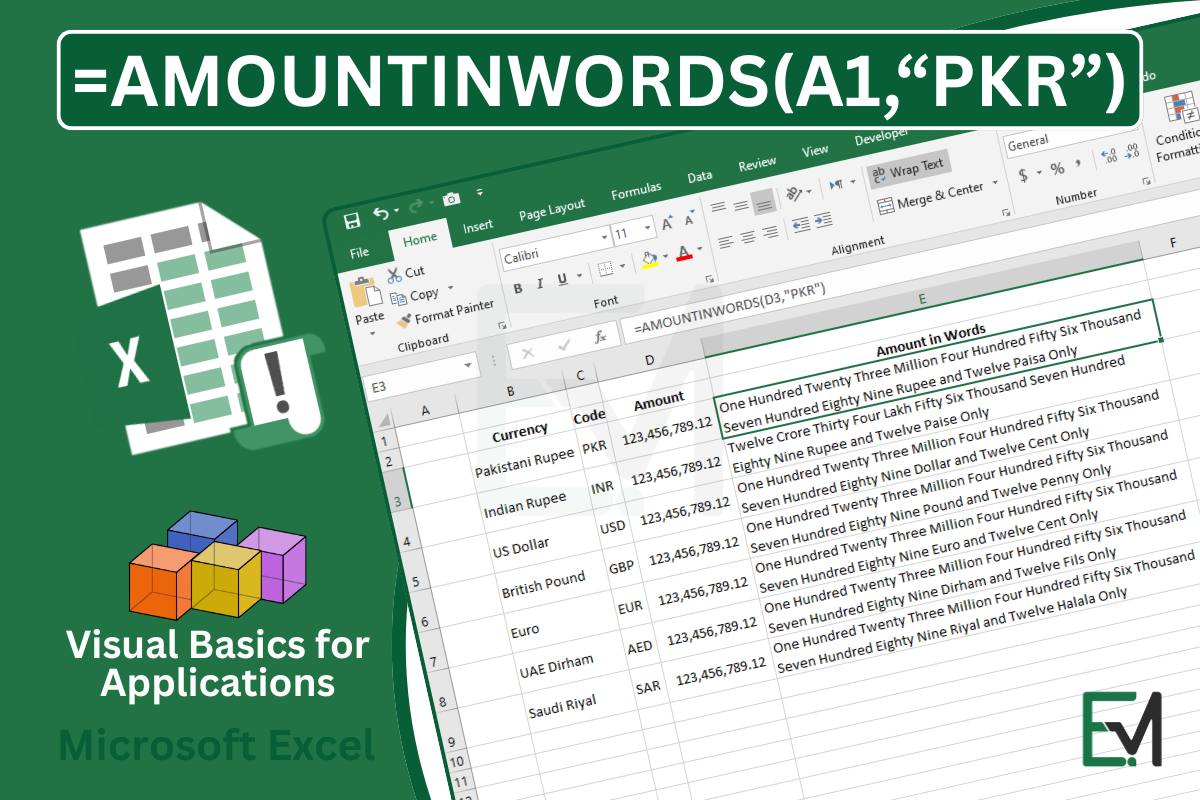
For example, after adding the VBA code, you will be able to use a formula like:
=AMOUNTINWORDS(D3,“PKR”)
This formula will convert the value in cell D3 into words using the selected currency (such as Pakistani Rupees).
Convert Amount to Words in Excel (Step-by-Step Guide)
Follow the steps below carefully. Even beginners can implement this without any prior coding experience.
Step 1: Open Microsoft Excel
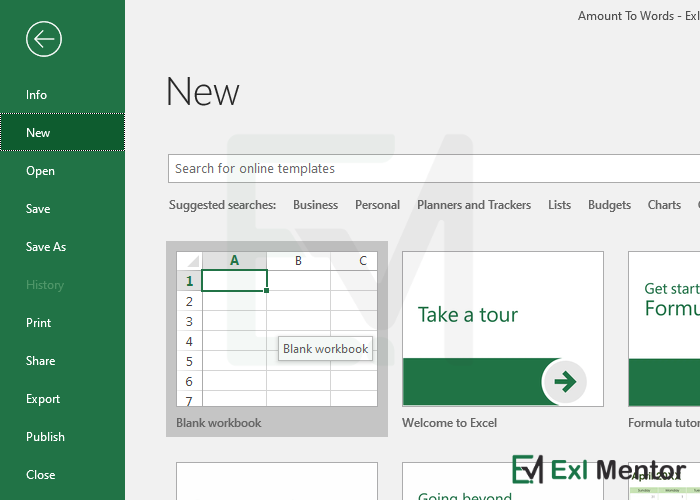
Launch Microsoft Excel and open a new blank workbook or the file where you want to use the Amount to Words feature.
Step 2: Open the VBA Editor
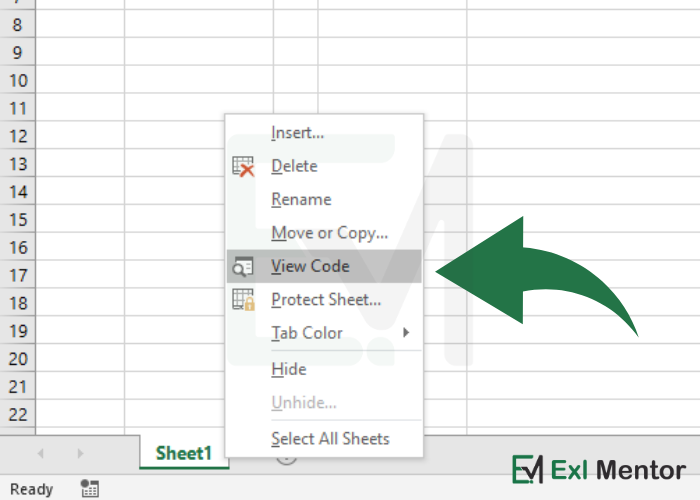
Shortcut
Alt + F11
Right-click on the sheet tab and click on View Code. This will open the Visual Basic Editor window.
Step 3: Insert a New Module
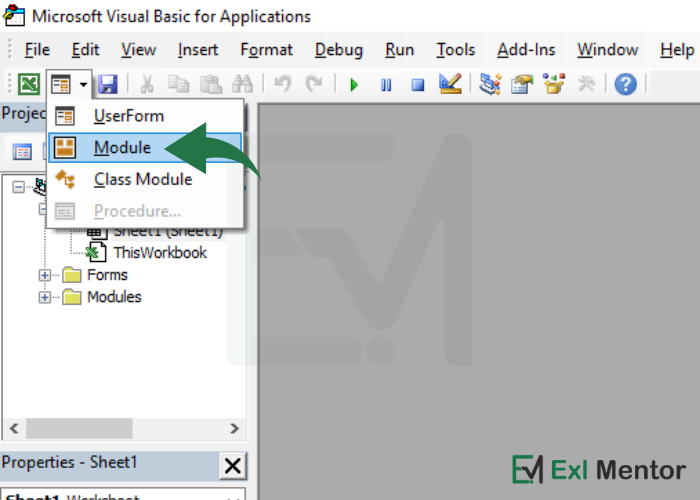
Click Insert from the top menu and select Module
A new blank module will be created where you can paste the VBA code.
Step 4: Paste the Amount to Words VBA Code
Option Explicit
'=========================================
' Amount in Words Function
' Developed by Exl Mentor
' Website: https://exlmentor.com
'=========================================

Function AMOUNTINWORDS(ByVal Amount As Variant, ByVal CurrencyCode As String) As String

    If Not IsNumeric(Amount) Then
        AMOUNTINWORDS = "#VALUE!"
        Exit Function
    End If

    ' Excel safe limit (15 digits)
    If Len(CStr(Fix(Amount))) > 15 Then
        AMOUNTINWORDS = "Amount exceeds Excel numeric limit"
        Exit Function
    End If

    Dim Num As Currency
    Num = CCur(Amount)

    Dim WholePart As Currency
    Dim DecimalPart As Long
    Dim Result As String
    Dim CurrencyName As String, DecimalName As String
    Dim UseIndianSystem As Boolean

    WholePart = Fix(Num)
    DecimalPart = CLng(Round((Num - WholePart) * 100, 0))
    CurrencyCode = UCase(Trim(CurrencyCode))

    Select Case CurrencyCode
        Case "INR"
            CurrencyName = "Rupee"
            DecimalName = "Paise"
            UseIndianSystem = True

        Case "PKR"
            CurrencyName = "Rupee"
            DecimalName = "Paisa"

        Case "USD"
            CurrencyName = "Dollar"
            DecimalName = "Cent"

        Case "GBP"
            CurrencyName = "Pound"
            DecimalName = "Penny"

        Case "EUR"
            CurrencyName = "Euro"
            DecimalName = "Cent"

        Case "AED"
            CurrencyName = "Dirham"
            DecimalName = "Fils"

        Case "SAR"
            CurrencyName = "Riyal"
            DecimalName = "Halala"

        Case Else
            AMOUNTINWORDS = "Unsupported Currency"
            Exit Function
    End Select

    If UseIndianSystem Then
        Result = ConvertIndian(WholePart)
    Else
        Result = ConvertInternational(WholePart)
    End If

    Result = Result & " " & CurrencyName

    If DecimalPart > 0 Then
        Result = Result & " and " & ConvertInternational(DecimalPart) & " " & DecimalName
    End If

    AMOUNTINWORDS = Trim(Result) & " Only"

End Function

'================ INTERNATIONAL SYSTEM =================

Function ConvertInternational(ByVal Num As Currency) As String

    Dim Units, Tens, Scales
    Units = Array("", "One", "Two", "Three", "Four", "Five", "Six", "Seven", "Eight", "Nine", _
                  "Ten", "Eleven", "Twelve", "Thirteen", "Fourteen", "Fifteen", _
                  "Sixteen", "Seventeen", "Eighteen", "Nineteen")

    Tens = Array("", "", "Twenty", "Thirty", "Forty", "Fifty", "Sixty", "Seventy", "Eighty", "Ninety")

    Scales = Array("", "Thousand", "Million", "Billion", "Trillion", "Quadrillion")

    Dim Words As String
    Dim i As Integer
    Dim Chunk As Long

    For i = 0 To UBound(Scales)
        Chunk = Num Mod 1000
        If Chunk > 0 Then
            Words = ConvertBelowThousand(Chunk, Units, Tens) & _
                    IIf(Scales(i) <> "", " " & Scales(i), "") & " " & Words
        End If
        Num = Num \ 1000
        If Num = 0 Then Exit For
    Next i

    ConvertInternational = Trim(Words)

End Function

'================ INDIAN SYSTEM =================

Function ConvertIndian(ByVal Num As Currency) As String

    Dim Units, Tens, Scales
    Units = Array("", "One", "Two", "Three", "Four", "Five", "Six", "Seven", "Eight", "Nine", _
                  "Ten", "Eleven", "Twelve", "Thirteen", "Fourteen", "Fifteen", _
                  "Sixteen", "Seventeen", "Eighteen", "Nineteen")

    Tens = Array("", "", "Twenty", "Thirty", "Forty", "Fifty", "Sixty", "Seventy", "Eighty", "Ninety")

    Scales = Array("", "Thousand", "Lakh", "Crore", "Arab", "Kharab")

    Dim Words As String
    Dim Chunk As Long
    Dim i As Integer

    ' First 3 digits
    Chunk = Num Mod 1000
    Words = ConvertBelowThousand(Chunk, Units, Tens)
    Num = Num \ 1000

    ' Next groups of 2 digits
    For i = 1 To UBound(Scales)
        If Num = 0 Then Exit For
        Chunk = Num Mod 100
        If Chunk > 0 Then
            Words = ConvertBelowHundred(Chunk, Units, Tens) & " " & Scales(i) & " " & Words
        End If
        Num = Num \ 100
    Next i

    ConvertIndian = Trim(Words)

End Function

'================ HELPERS =================

Function ConvertBelowThousand(ByVal Num As Long, Units, Tens) As String
    Dim Words As String
    If Num >= 100 Then
        Words = Units(Num \ 100) & " Hundred "
        Num = Num Mod 100
    End If
    Words = Words & ConvertBelowHundred(Num, Units, Tens)
    ConvertBelowThousand = Trim(Words)
End Function

Function ConvertBelowHundred(ByVal Num As Long, Units, Tens) As String
    If Num < 20 Then
        ConvertBelowHundred = Units(Num)
    Else
        ConvertBelowHundred = Tens(Num \ 10) & _
                              IIf(Num Mod 10 > 0, " " & Units(Num Mod 10), "")
    End If
End Function
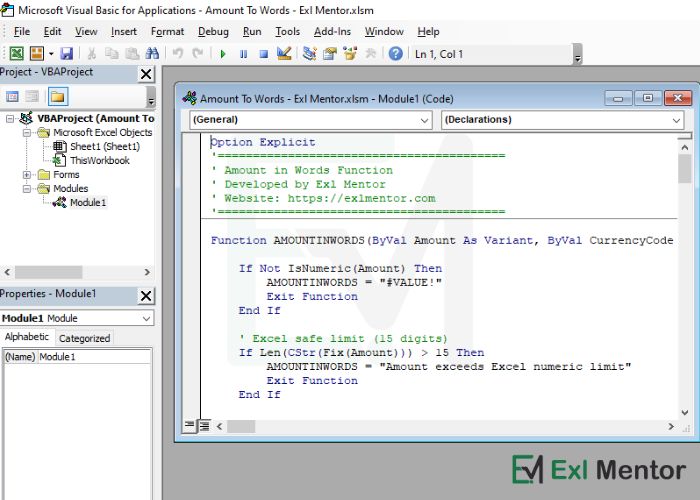
Copy the complete VBA code provided above and paste it into the newly created module window
Make sure the entire code is pasted without removing or modifying any part.
Step 5: Save the Workbook as Macro-Enabled
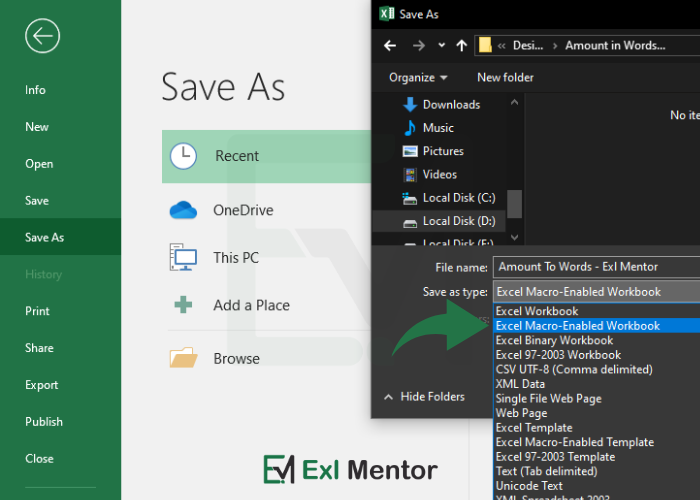
To make the function work properly, you must save the file as a Macro-Enabled Workbook (.xlsm)
Important Note!
If you save the file as a normal .xlsx, the VBA code will be removed.